A segment is a saved filter over your contacts, for example everyone who signed up in the last 30 days and never purchased. Once saved, you can target it from any campaign or automation.

Creating a segment in the app, from empty to a saved filter

Step by step

1

Open Segments and create one

Go to Segments and click Create new segment.
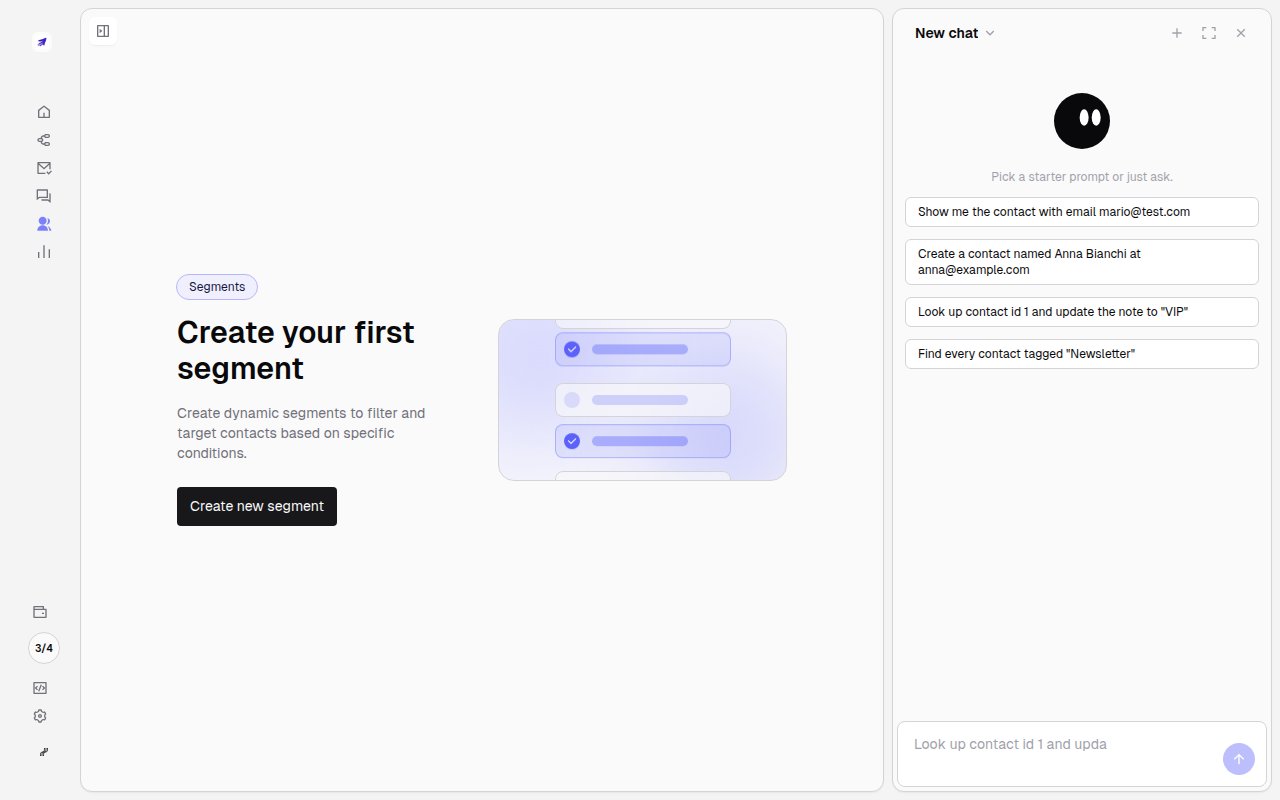
The empty Segments page with Create new segment
2

Name it and choose the relation

Give the segment a clear name you’ll recognize later (e.g. Engaged newsletter readers) and pick whether contacts must match all conditions (And) or any (Or).
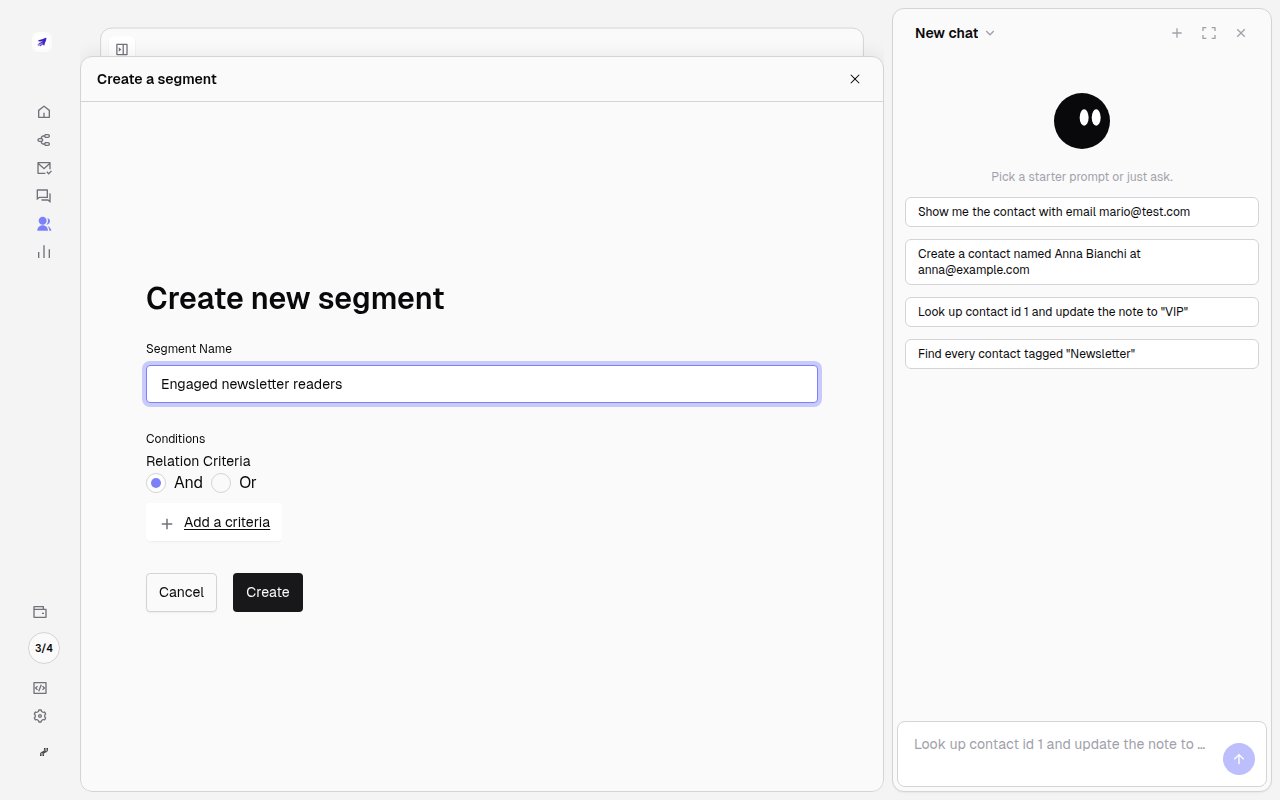
Naming a segment and choosing the relation criteria
3

Add conditions and save

Click Add a criteria and combine any contact field or custom field. Minimo updates the matching count live. Save, and the segment stays dynamic: contacts enter and leave automatically as they start or stop matching.
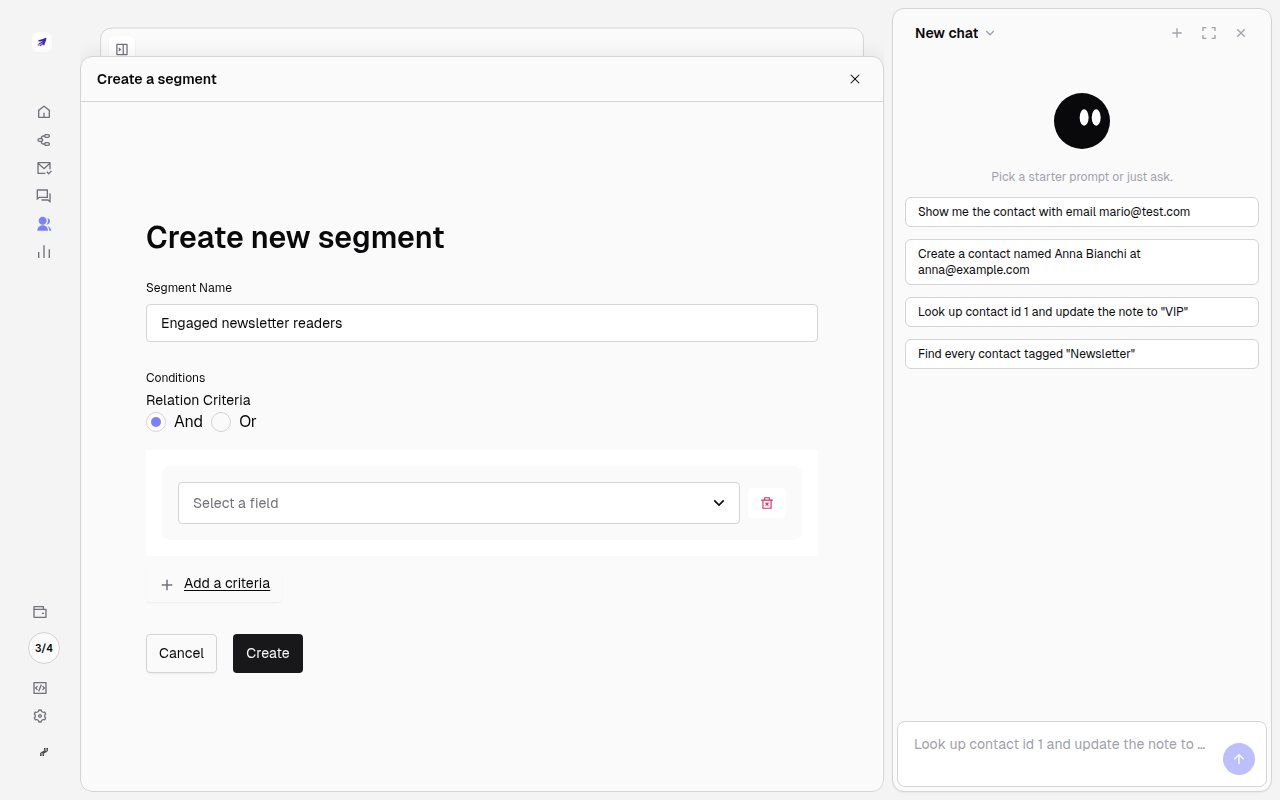
Adding a field condition to the segment

Use it

A saved segment becomes selectable when you send a campaign or wire an automation. You can also read the current members via the API.
Not sure how to phrase a filter? Ask Mo: “segment of contacts who signed up this month and haven’t opened an email.”