> ## Documentation Index
> Fetch the complete documentation index at: https://docs.minimo.it/llms.txt
> Use this file to discover all available pages before exploring further.

# Email campaigns

> Design a marketing email and send it to a segment or list, step by step with the real app.

A **campaign** is one email sent to many contacts at once, a sale, a newsletter, an announcement. You
design it in Minimo, pick a [segment](/product/contacts/segments) or list, review, and send.

For reusable, event-driven messages sent one contact at a time (welcome, receipt, password reset),
see [Email templates](/product/messaging/templates).

<Frame caption="A campaign going out, start to finish, narrated. Press play to follow along.">
  <video controls playsInline preload="metadata" poster="/images/tutorials/campaign-start.png" className="w-full rounded-2xl">
    <source src="https://mintcdn.com/minimo/qRL89WOzmC03dUAd/videos/real-send-email-campaign-narrated.mp4?fit=max&auto=format&n=qRL89WOzmC03dUAd&q=85&s=d99f7fc22feebf67e23334116dcd9526" type="video/mp4" data-path="videos/real-send-email-campaign-narrated.mp4" />
  </video>
</Frame>

## Before you start

<Steps>
  <Step title="Verify a sending domain">
    In **Settings → Domain and tracking**, add your domain and set the DNS records Minimo shows you.
    Verifying SPF/DKIM is what keeps your mail out of spam.
  </Step>

  <Step title="Whitelist a sender address">
    Add the `From` address you'll send with (e.g. `hello@yourdomain.com`). It must be on a verified
    domain.
  </Step>

  <Step title="Have an audience">
    A campaign targets a [segment](/product/contacts/segments) or a list, not your whole database.
    Create one first if you haven't.
  </Step>
</Steps>

## Send a campaign

Step by step, the way it plays out in the walkthrough above.

<Steps>
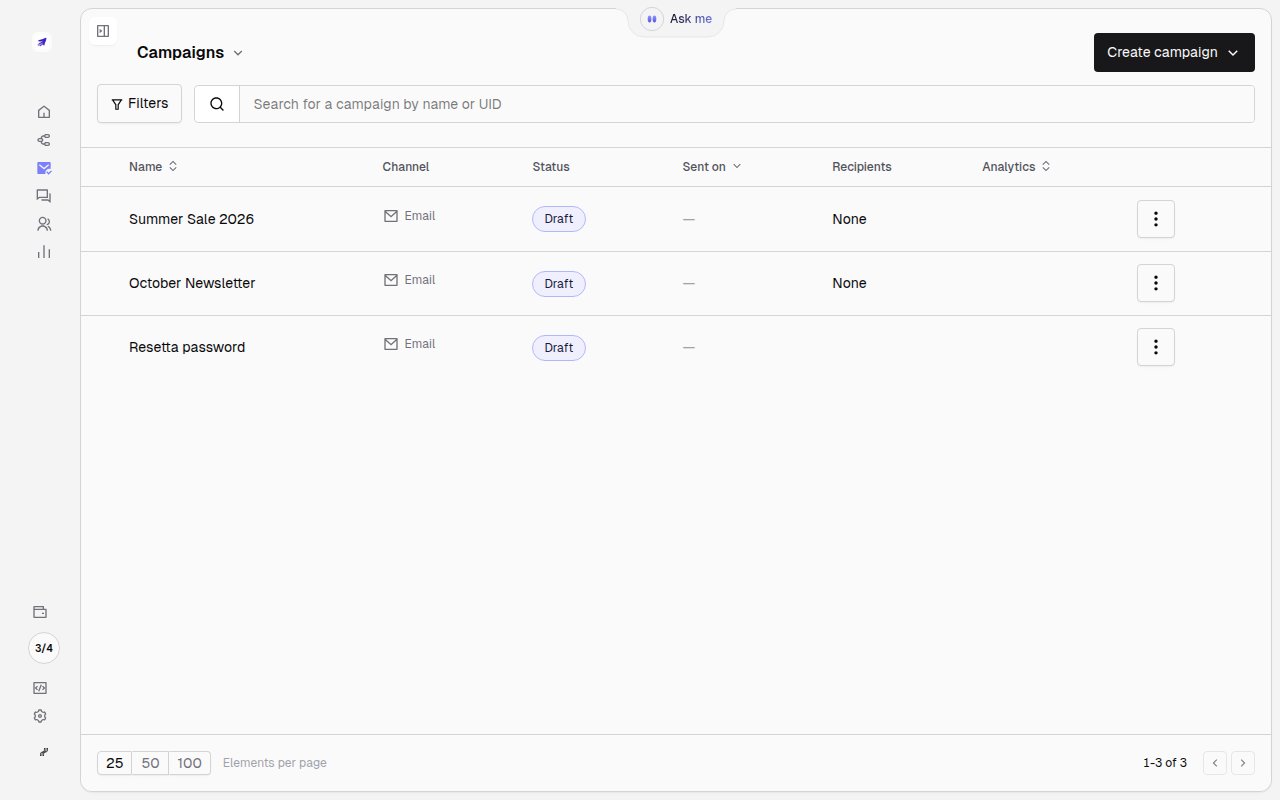
  <Step title="Open Campaigns and create one">
    Go to **Campaigns** and click **Create campaign → Email campaign**. Your existing campaigns, their
    channel, status and analytics live here.

    <Frame>
      <img src="https://mintcdn.com/minimo/Ha7arL7dC1pCchTU/images/tutorials/campaign-list.png?fit=max&auto=format&n=Ha7arL7dC1pCchTU&q=85&s=e6101d090aa0a33785fb30815381d7b3" alt="The campaigns list with Create campaign" className="rounded-xl" width="1280" height="800" data-path="images/tutorials/campaign-list.png" />
    </Frame>
  </Step>

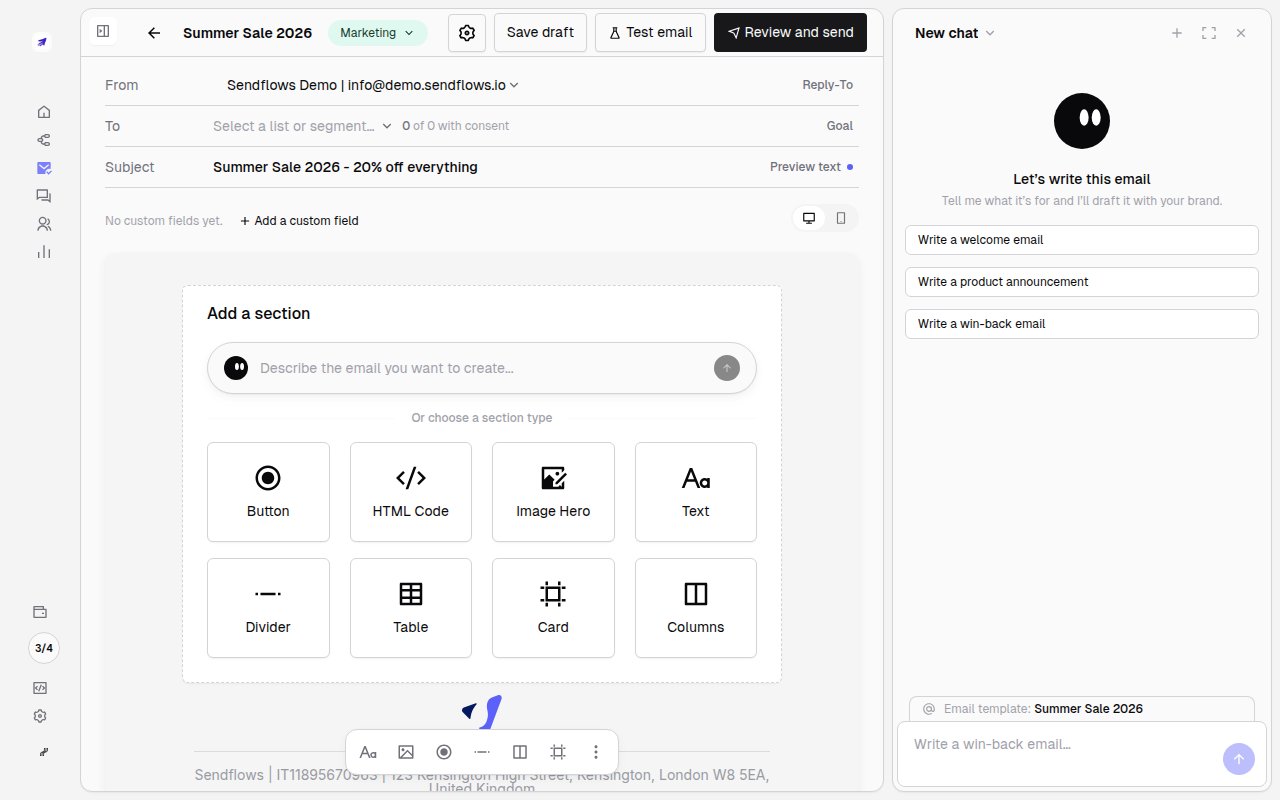
  <Step title="Write the email">
    Set the subject and build the body from sections, or describe it in plain language and let **Mo**
    draft it. Fields like `{{firstName}}` are filled per recipient at send time.

    <Frame>
      <img src="https://mintcdn.com/minimo/Ha7arL7dC1pCchTU/images/tutorials/campaign-editor.png?fit=max&auto=format&n=Ha7arL7dC1pCchTU&q=85&s=9a3258a9c8765e0e0f373439cdab8020" alt="The campaign editor with subject, sections and Mo" className="rounded-xl" width="1280" height="800" data-path="images/tutorials/campaign-editor.png" />
    </Frame>
  </Step>

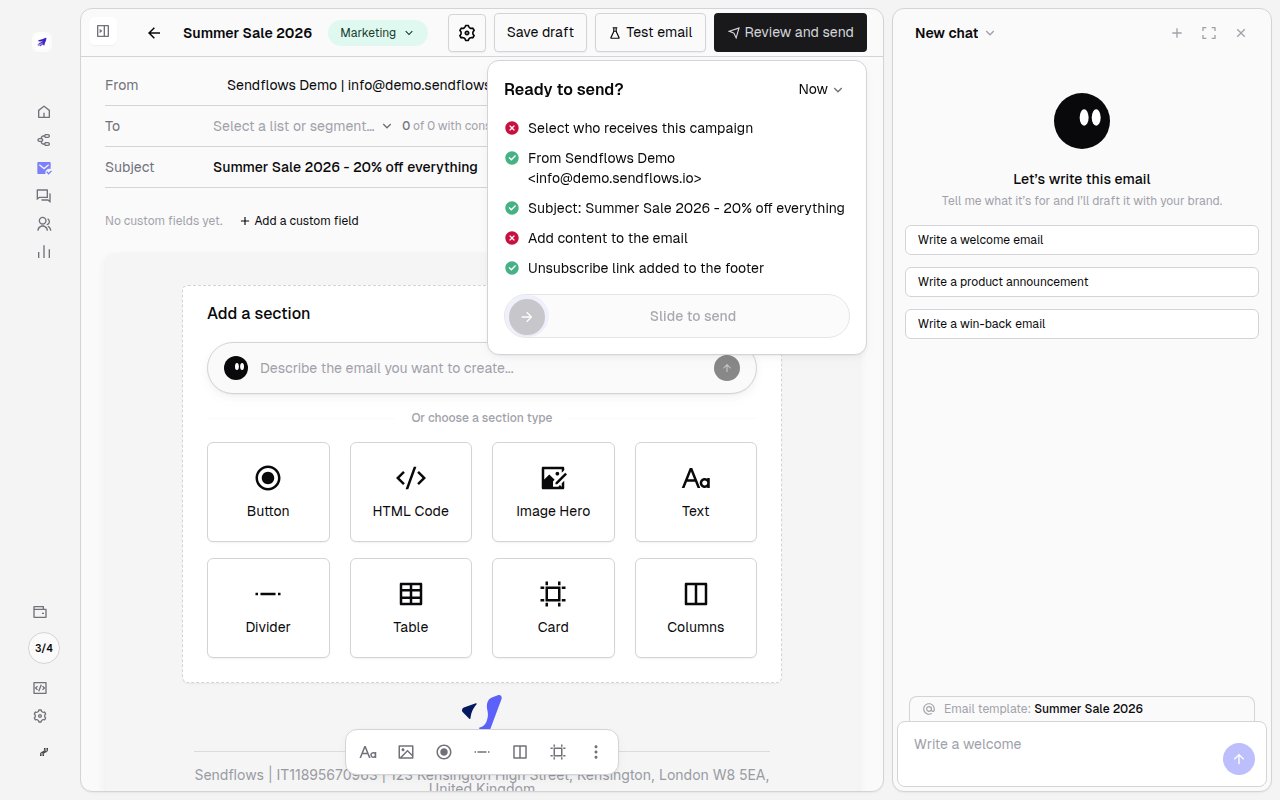
  <Step title="Pick the audience, review and send">
    Choose who receives it under **To**, then **Review and send**. Minimo shows a pre-send checklist
    (sender, subject, content, unsubscribe link) and the recipient count before anything goes out.
    Use **Test email** to send yourself a copy first.

    <Frame>
      <img src="https://mintcdn.com/minimo/Ha7arL7dC1pCchTU/images/tutorials/campaign-review.png?fit=max&auto=format&n=Ha7arL7dC1pCchTU&q=85&s=9fe479f0755878b9649733204ed70b61" alt="The Ready to send review checklist" className="rounded-xl" width="1280" height="800" data-path="images/tutorials/campaign-review.png" />
    </Frame>
  </Step>

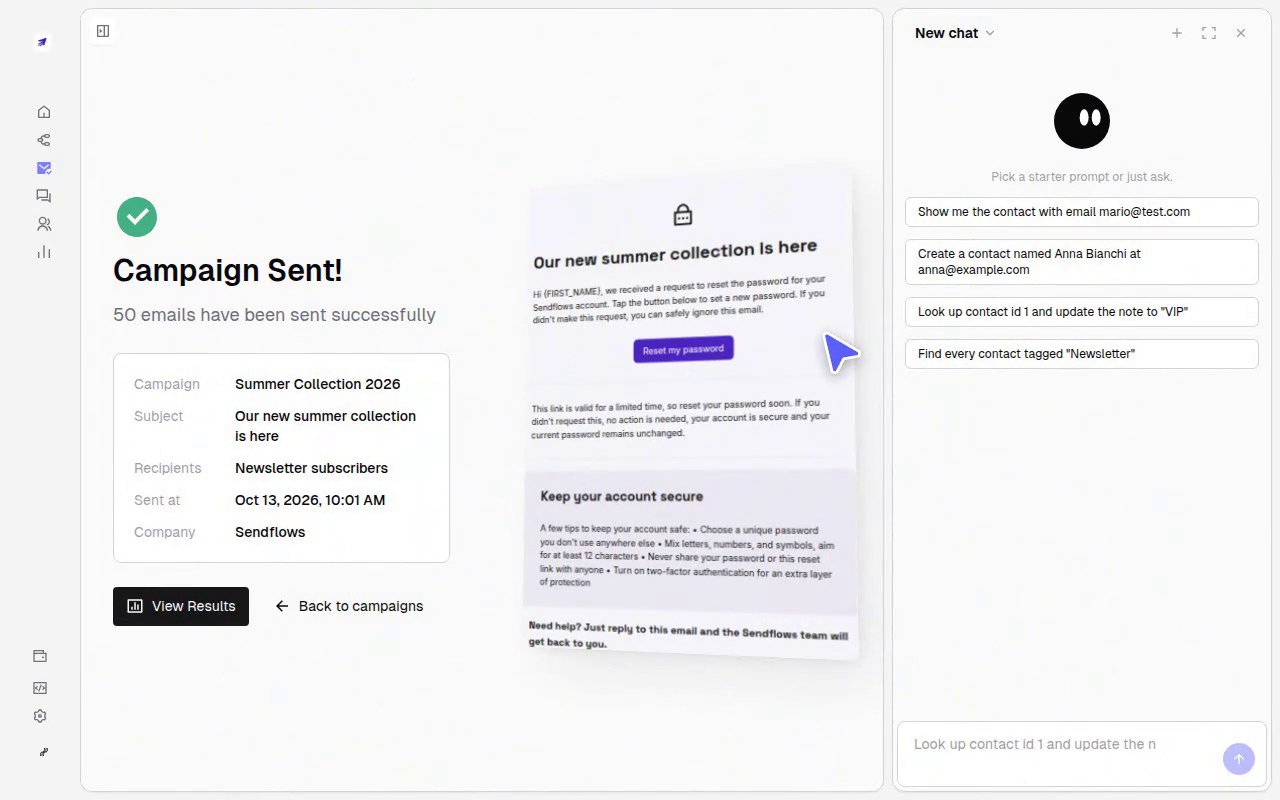
  <Step title="Confirm it's on its way">
    Once you slide to send, Minimo confirms how many contacts the campaign went to.

    <Frame>
      <img src="https://mintcdn.com/minimo/FNMPwrtcBxaVV0fQ/images/tutorials/campaign-success.png?fit=max&auto=format&n=FNMPwrtcBxaVV0fQ&q=85&s=e20d52900c9eaa1fa34cd9c66b90db46" alt="Campaign sent confirmation" className="rounded-xl" width="1280" height="800" data-path="images/tutorials/campaign-success.png" />
    </Frame>
  </Step>
</Steps>

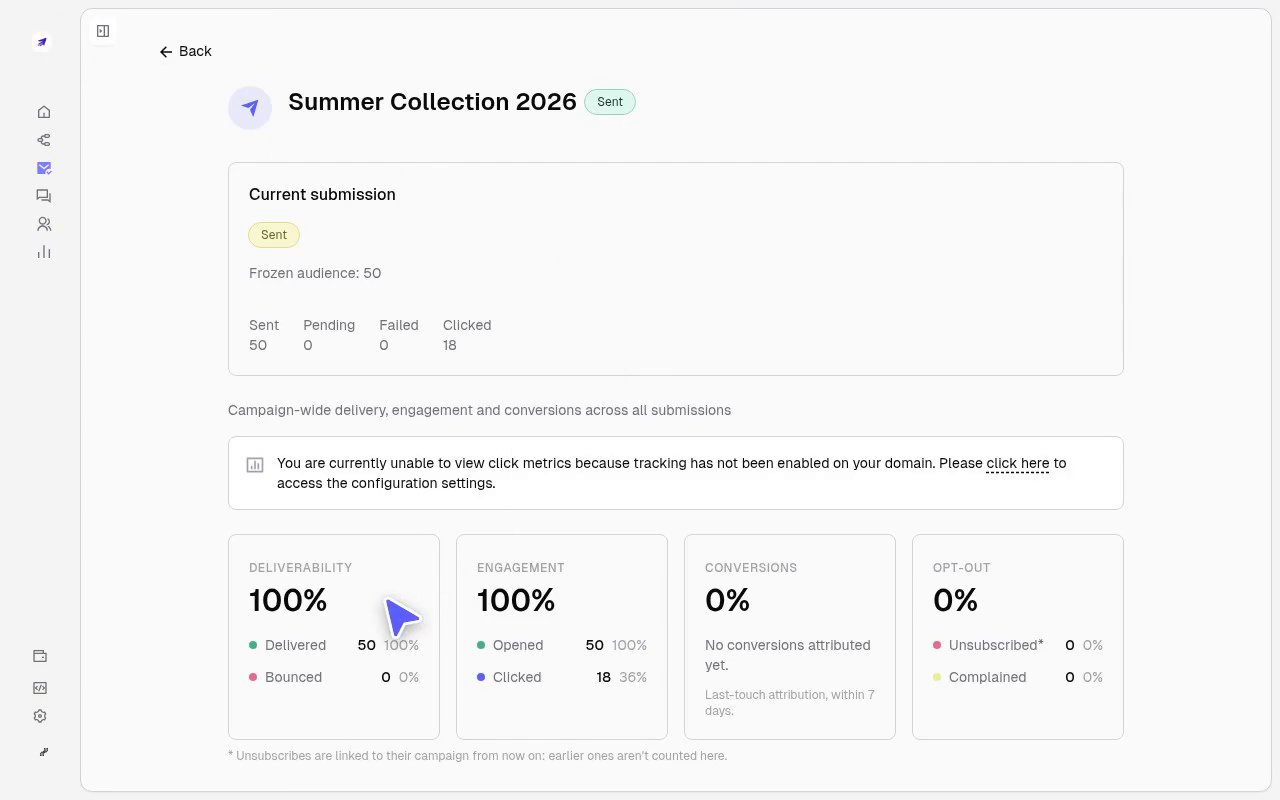
### Track results

Open **View results** to watch delivery, opens, clicks, conversions and opt-outs come in, per
submission and campaign-wide. You can also read the numbers via the
[Email template stats](/api-reference/messaging-channels/email/stats) endpoint.

<Frame>
  <img src="https://mintcdn.com/minimo/FNMPwrtcBxaVV0fQ/images/tutorials/campaign-stats.png?fit=max&auto=format&n=FNMPwrtcBxaVV0fQ&q=85&s=a17e4c0fdef68328e801981e53f81336" alt="Campaign results: deliverability, engagement, conversions" className="rounded-xl" width="1280" height="800" data-path="images/tutorials/campaign-stats.png" />
</Frame>


This documentation is built and hosted on [Mintlify](https://mintlify.com), a developer documentation platform.