> ## Documentation Index
> Fetch the complete documentation index at: https://docs.minimo.it/llms.txt
> Use this file to discover all available pages before exploring further.

# Segments

> Filter your contacts into a reusable audience you can target with campaigns and automations.

A segment is a saved filter over your contacts, for example *everyone who signed up in the last 30
days and never purchased*. Once saved, you can target it from any campaign or automation.

<Frame caption="Creating a segment in the app, from empty to a saved filter">
  <video autoPlay loop muted playsInline poster="/images/tutorials/segment-empty.png" className="w-full rounded-2xl">
    <source src="https://mintcdn.com/minimo/Ha7arL7dC1pCchTU/videos/real-create-segment.mp4?fit=max&auto=format&n=Ha7arL7dC1pCchTU&q=85&s=996c9590f227023e5461435dd7b8dea6" type="video/mp4" data-path="videos/real-create-segment.mp4" />
  </video>
</Frame>

## Step by step

<Steps>
  <Step title="Open Segments and create one">
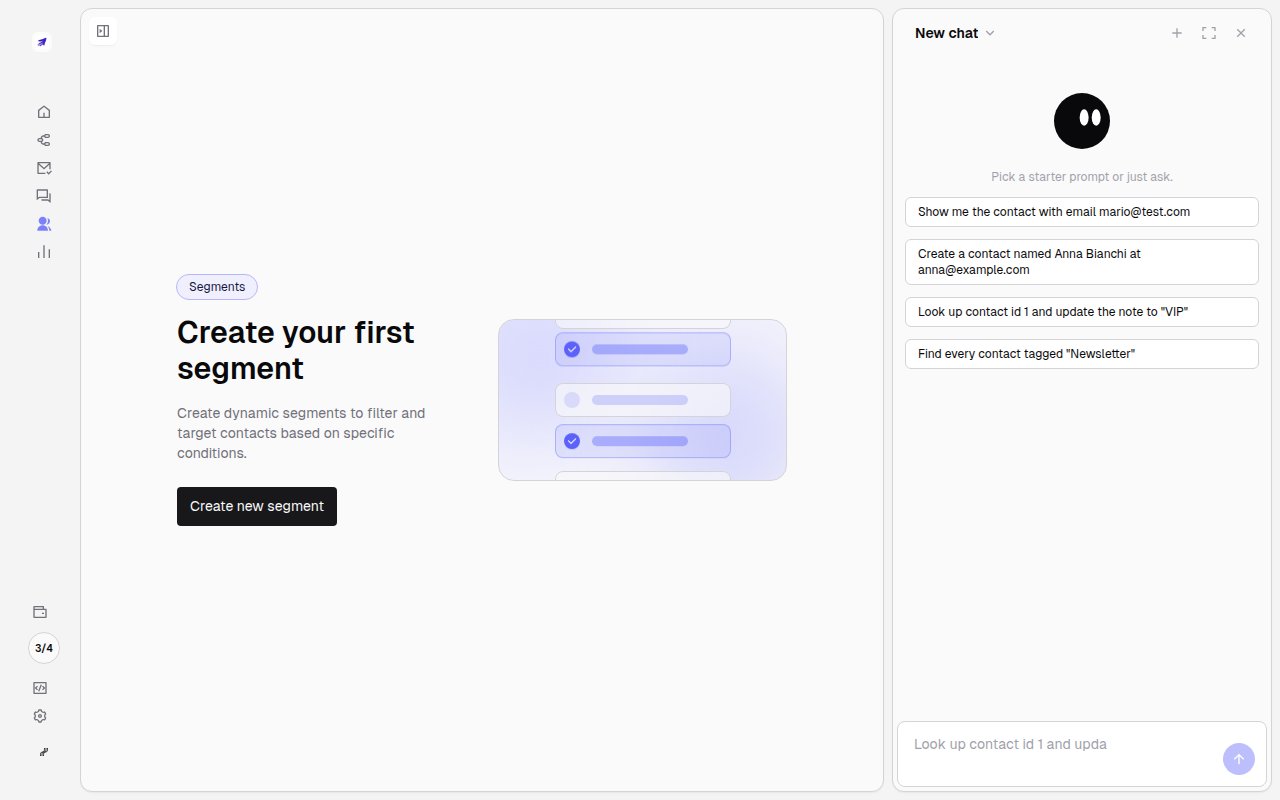
    Go to **Segments** and click **Create new segment**.

    <Frame>
      <img src="https://mintcdn.com/minimo/Ha7arL7dC1pCchTU/images/tutorials/segment-empty.png?fit=max&auto=format&n=Ha7arL7dC1pCchTU&q=85&s=45010ca2046ff7954a4eb6b3845cc4de" alt="The empty Segments page with Create new segment" className="rounded-xl" width="1280" height="800" data-path="images/tutorials/segment-empty.png" />
    </Frame>
  </Step>

  <Step title="Name it and choose the relation">
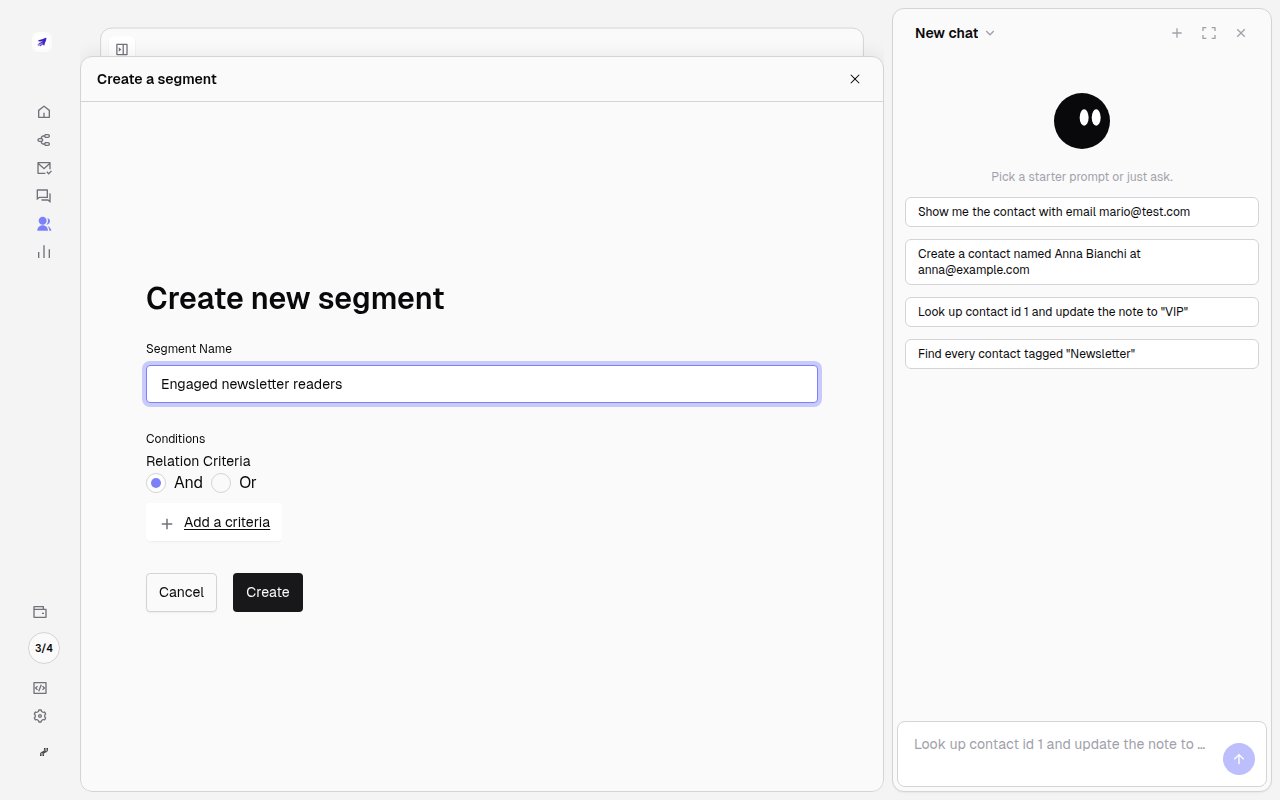
    Give the segment a clear name you'll recognize later (e.g. *Engaged newsletter readers*) and pick
    whether contacts must match **all** conditions (And) or **any** (Or).

    <Frame>
      <img src="https://mintcdn.com/minimo/Ha7arL7dC1pCchTU/images/tutorials/segment-builder.png?fit=max&auto=format&n=Ha7arL7dC1pCchTU&q=85&s=eb50f1c6c97cd204b37e44775230a410" alt="Naming a segment and choosing the relation criteria" className="rounded-xl" width="1280" height="800" data-path="images/tutorials/segment-builder.png" />
    </Frame>
  </Step>

  <Step title="Add conditions and save">
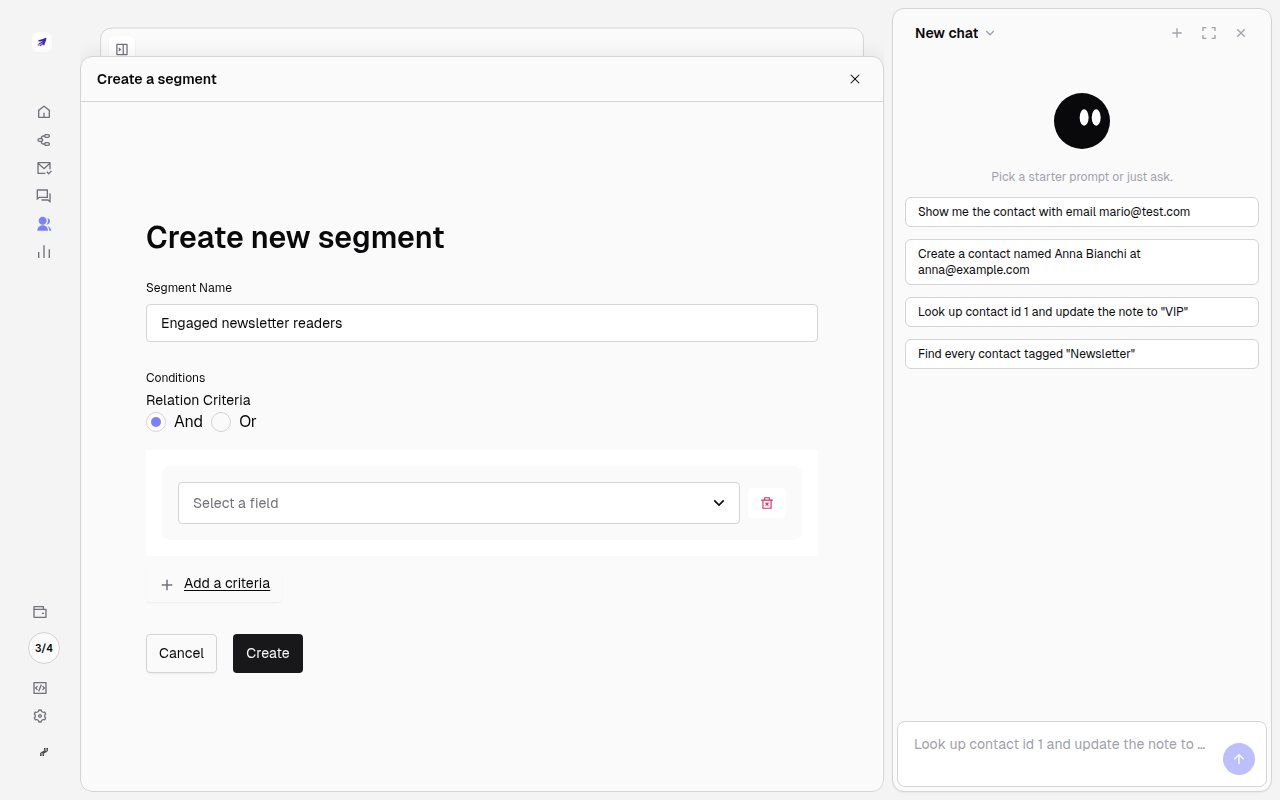
    Click **Add a criteria** and combine any contact field or custom field. Minimo updates the
    matching count live. Save, and the segment stays dynamic: contacts enter and leave automatically
    as they start or stop matching.

    <Frame>
      <img src="https://mintcdn.com/minimo/Ha7arL7dC1pCchTU/images/tutorials/segment-criteria.png?fit=max&auto=format&n=Ha7arL7dC1pCchTU&q=85&s=28072b66951bc807542aeaf0eed59293" alt="Adding a field condition to the segment" className="rounded-xl" width="1280" height="800" data-path="images/tutorials/segment-criteria.png" />
    </Frame>
  </Step>
</Steps>

## Use it

A saved segment becomes selectable when you [send a campaign](/product/messaging/email)
or wire an [automation](/product/automations/lifecycle). You can also read the current members via the
API.

<Tip>
  Not sure how to phrase a filter? Ask **Mo**: *"segment of contacts who signed up this month and
  haven't opened an email."*
</Tip>


This documentation is built and hosted on [Mintlify](https://mintlify.com), a developer documentation platform.